Applying Filters and Downloading Data | Analytics Reports | Astro Manufacturers
How to Apply Filters
1. Navigate to the report you want to view.
2. Click on a filter you want to use.
3. You can use the "All" option to check/uncheck all the fields in the filter.
4. Check the fields you want the report to be filtered by and click "Apply".
5. To change the date range, click on the "Start Date" and "End Date" filters.
6. You can manually type in a date, or choose the date from the dropdown menu.
7. After applying the appropriate filters, the report will reflect the selected data.
How to Download Data
1. Click this export icon. It will either be on the top or bottom right of reports.
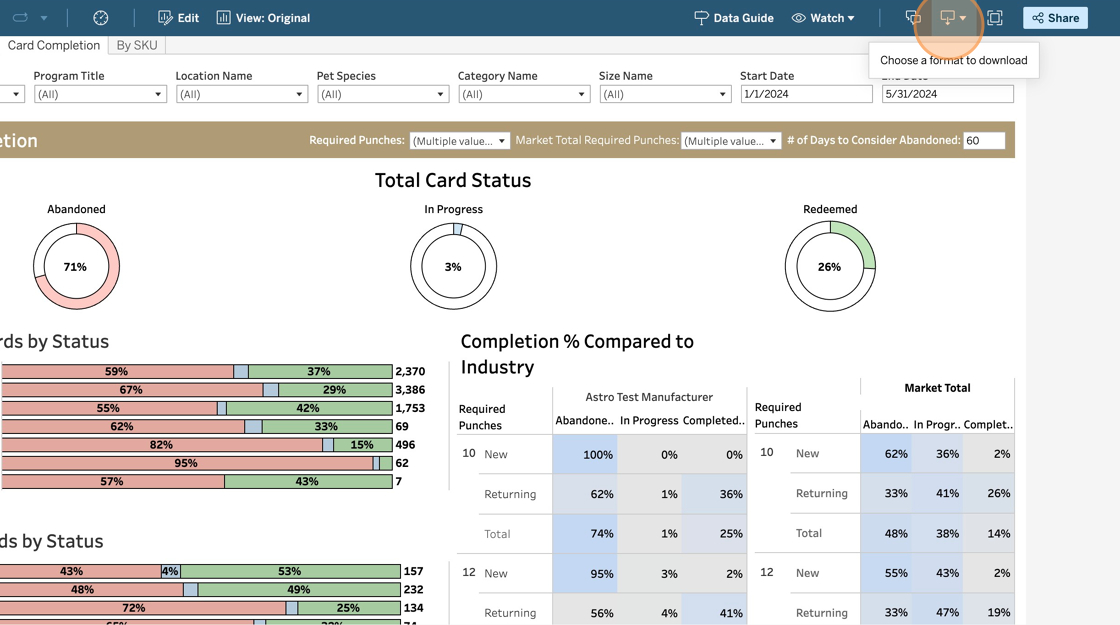
2. You can choose between the different options here. Crosstab is the most common option.

3. Here you can choose which table from the report you want to export. You have an option between an Excel export or CSV.

4. Once you have the export you want click "Download".
